 R7 Orbit
R7 Orbit’s patch notes list 42 releases between September 30 and October 24, 2026, with 159 changes in 25 days. This fifth post in the series looks at that pace, how an update reaches Hunter’s computer, and the mistakes along the way, each with what changed because of it. The earlier parts cover why Orbit exists, how it keeps Hunter in charge, talking to it and what Hunter built with it.
The pace
Most days with a release had two or three. Two days had far more: October 1 had nine releases and October 23 had ten.
October 1, the app’s second day, brought voice commands, several projects open at once, Ask Orbit, natural read-aloud voices and real terminals. October 23 had the most: agents gained connections to other programs and services, Blender for 3D work, their own browser tab, control of other programs on the PC with Hunter’s approval, a skills library, and picture making. A feedback button for bug reports shipped the same day.
There were no releases between October 10 and October 21, which is the empty week in the chart.
How an update reaches Hunter
An update is a new version of the app. Orbit checks for one in the background and downloads it, then shows a quiet Update ready notice in the top bar. Nothing restarts until Hunter says so, and if agents are working, Orbit warns him that restarting will stop them.
Before the first release went out, Claude built a test for this: it installs a throwaway copy of Orbit, updates it twice from a local copy of the update feed, and removes it again.
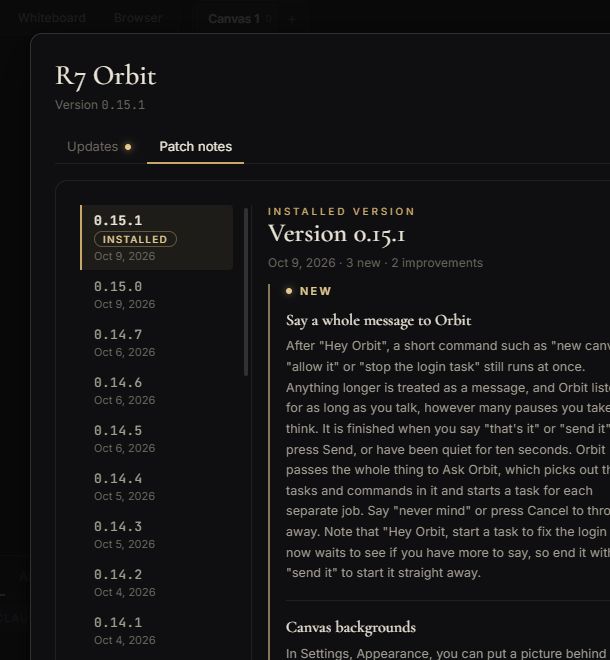
Since October 9, the notes themselves are easier to read. Each version’s changes are sorted into new, better and fixed, each with a short headline, and a Patch notes tab keeps every version back to the first. After an update, a What’s new button takes Hunter straight to the notes for the version he now has.
What went wrong
Shipping that often meant some mistakes shipped too. These are the ones that changed how Orbit works.
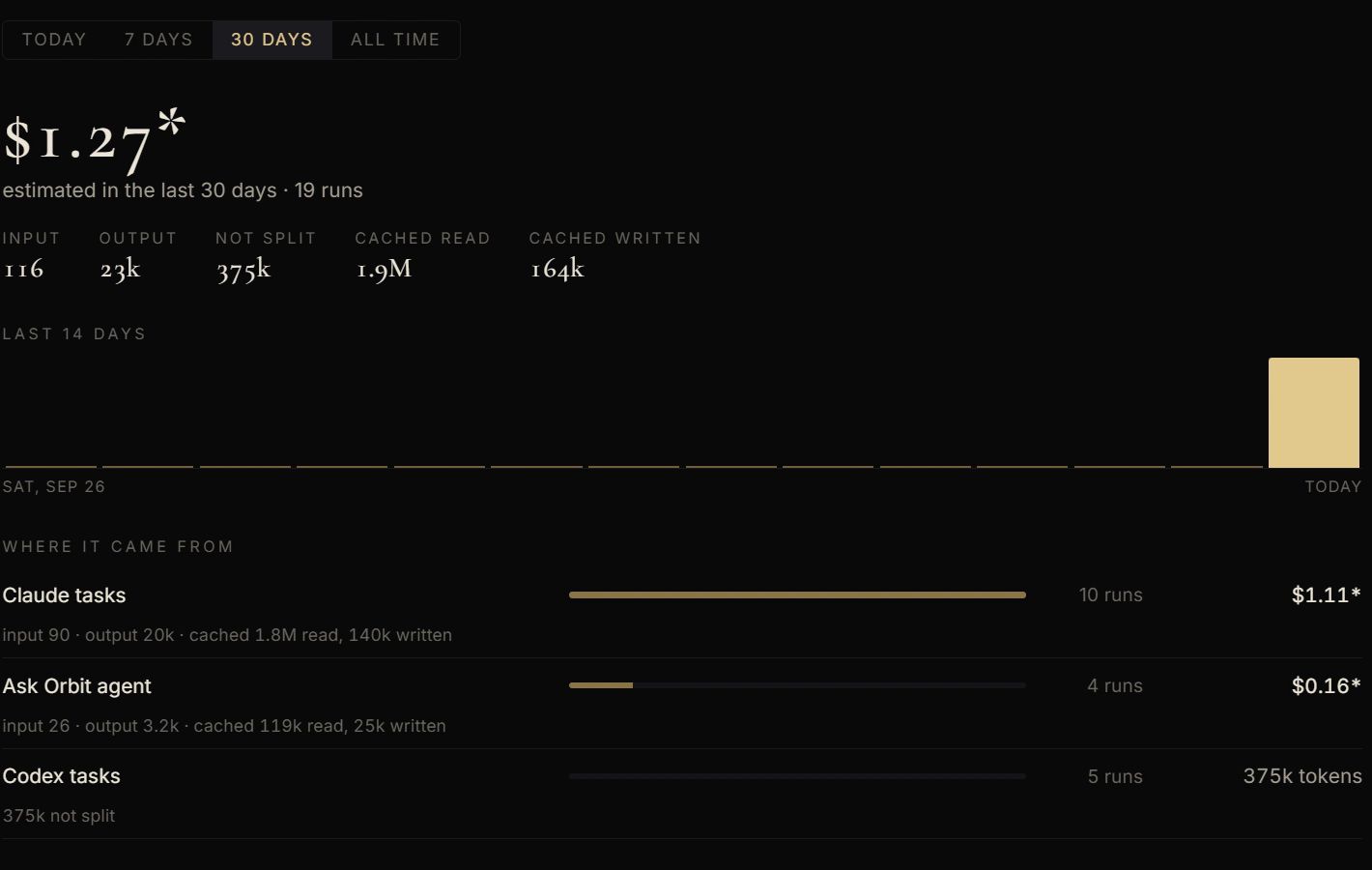
Costs counted ten times over. Claude reports what a conversation has cost so far as a running total. Orbit added that total again with every message, so a task with ten messages was counted about ten times. Since October 4, Orbit counts only what each message added. The first time the fixed version started, it recalculated the past, kept a copy of the old numbers, and showed what the Usage page said before and after.
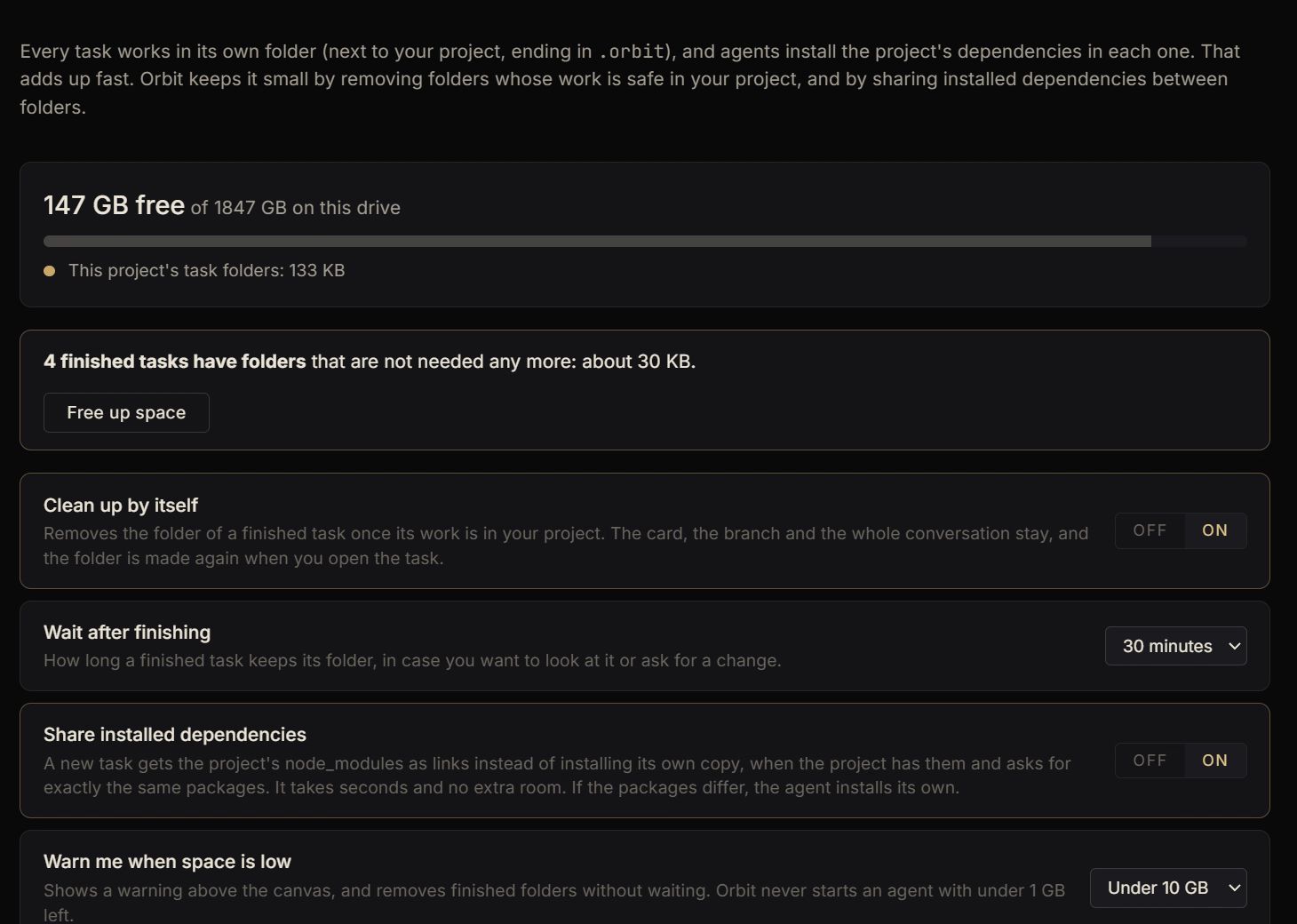
A drive filling up. Every task works in its own copy of the project, and each copy used to get its own full set of installed packages, the code libraries a project depends on. A busy project could fill a drive with tens of gigabytes. On October 5, Orbit started removing a finished task’s folder after a wait (and making it again from the branch if needed), letting new task folders share the project’s packages instead of copying them, and warning when space runs low. Under 1 GB free, it won’t start an agent at all, because the agent would fail halfway.
Codex agents that couldn’t touch a file. For a while, a Codex task would answer that its tools were disabled and change nothing. Orbit had left out, and switched off, the part of Codex that runs its file and command tools. Since October 10 it’s included again, and Codex asks before using it, the same as before.
Claude Code taking Orbit’s own copy of Claude. Claude Code started in one of Orbit’s terminals could update itself and replace the copy of Claude that Orbit uses, which left Orbit saying Hunter wasn’t signed in. Since October 1, Orbit switches that self-update off for every agent, and puts the file back if it’s ever moved.
A half-written save. Closing Orbit at exactly the wrong moment could leave a project’s file half written. Since October 4, every save writes a whole file and keeps a backup, a damaged file is set aside and the backup used instead, and closing Orbit waits for saves to finish.
Every release, in Orbit’s own words
These are the patch notes as they appeared in Orbit, all 42 releases, newest first. The box scrolls on its own, so the rest of this page stays put.
R7 Orbit patch notes
As of , version 0.24.1
0.24.16 changes
Improvements
- Connectors fold away. Each connector under Settings, Connectors, Yours folds down to one line with its status, its name, a short summary and its on/off switch. Open all and Close all are above the list, and ones that need you open by themselves.
- Signing in to a connector says where it is. The card says when the sign-in page is open in your browser, offers to open it again, and shows any problem right on the card.
- The page you see after signing in to a connector now shows the R7 Orbit logo.
Fixes
- Figma is no longer offered as a one-click connector. Figma only lets apps it has approved sign in, so pressing + seemed to do nothing. Searching for it now explains why.
- When a service turns down a connector's sign-in, Orbit renews it once and tries again, then asks you to sign in again with a clear reason. For Zapier, that usually means Zapier MCP is turned off for your Zapier workspace.
- Orbit's taskbar icon could turn into a blank page after an update. Orbit now tells Windows which app it is, so the taskbar uses its proper icon.
0.24.03 changes
New
- Copy buttons for commands and links. When Ask Orbit or an agent gives you a command block, press Copy in its corner to put the whole thing on your clipboard, every line exactly as written.
- Click any short code to copy it. A path, a branch name or a short command shown in code style is copied with one click.
- Copy a link's address. Links still open in Orbit's browser when you click them, and a small copy button beside each one copies the address.
0.23.04 changes
New
- See the pictures your agents look at. When a Claude or Codex agent opens a picture, takes a screenshot in Orbit's browser, renders in Blender or gets a picture back from a tool, it now shows in the task's conversation, under "Worked for…".
- Click a picture to see it large. Use the arrow keys to move between pictures, Open to view it in your own picture viewer, and Escape to close it. Pictures you attached to a message open the same way.
- Attach files to Ask Orbit. Use the paperclip, drop files on it, or paste a picture. Ask Orbit sees pictures and PDFs, reads text files, and keeps them with that project's conversation until you start a new chat.
Fixes
- Pictures with a very long file path now show their small preview instead of a blank space.
0.22.03 changes
New
- Resize any card on the canvas. Drag a card's right edge to change its width, its bottom edge to change its height, or its corner for both. Double-click a handle to go back to the usual size.
- Taller terminals. Make a terminal's screen taller to see more of what the program is doing, and the program fits itself to the new size. Make a task card taller to read more of the agent's latest message.
- Recent repositories. The open dialog lists the projects you have opened in Orbit before, newest first, so opening one again is one click. It opens on This computer when there are any, with a search box once the list gets long. Projects you have closed stay on the list, and folders that have moved or gone say so.
0.21.04 changes
New
- Send bug reports and ideas from inside Orbit. Press Feedback in the top bar to report a bug or suggest an idea. You can type the details or hold the microphone and say them.
- Add a screenshot to a bug report in one click. Orbit takes a picture of its window when you press Feedback and shows it to you. It is only sent if you tick it, so leave it off if it shows something private.
- My reports shows what happened to what you sent. Each report gets a number and shows whether it was received, planned or fixed, along with any reply.
Improvements
- Reports are never lost. If you are offline or Orbit closes, the report is kept on your computer and sent by itself later. With every report Orbit sends only its own version and your Windows version, plus what you write and the screenshot if you tick it.
0.20.04 changes
New
- Connectors, a directory of tools your agents can use. Settings, MCP servers is now Settings, Connectors. Discover lists 26 connectors by category with search, and Yours shows the ones you have added.
- One-click sign-in for Notion, Linear, Figma, Stripe and 15 more. Press + and the service's own sign-in page opens in your browser. When you come back, the connector is added and tested, with nothing to paste. Orbit keeps the sign-in encrypted and renews it by itself, and if it ever runs out you see Sign in again.
Improvements
- Programs that run on your PC (Blender, Playwright, Files in a folder, Fetch) say what they need before you add them. If uv, Node.js or Blender is missing, the card says so and links to where to get it.
Changes
- Pasting a configuration and importing from Claude Desktop, Claude Code or Cursor moved under the Add button on the Connectors page. Search for a service that is not there, like Google Drive or Slack, and it tells you why.
0.19.07 changes
New
- Agents can use Blender without opening it. When a task needs 3D work, it builds a scene in a .blend file in its folder, renders it, and looks at the render to check its work. Blender needs to be installed, and the first script in a task asks you first.
- Agents can use websites in Orbit's browser. Each agent gets its own tab next to the canvas, so you can watch it read pages, click and type. Pages on your computer just work, and each website asks you once per task. Agents browse without your sign-ins and never type into password or card fields.
- Agents can use your PC. When you ask, an agent can see your screen and click and type in another program (Windows, main screen). It asks before it sees the screen and before each program, a bar stays on top while it has control, and Ctrl+Alt+Esc stops it all.
- A skills library. In Settings, Skills, add a skill once (a folder, a .zip or a SKILL.md) and every Claude task can use it. New skills start switched off so you can read them first, and you can bring in the ones you already have in Claude Code.
Improvements
- MCP servers work everywhere. Codex tasks, Ask Orbit and Claude Code or Codex in a terminal now get your servers too, and Codex asks on the task card the same way Claude does. Settings, MCP servers has a list of servers known to work (Blender, Fetch, Playwright, Files in a folder, Context7), can import servers from Claude Desktop, Claude Code and Cursor, and has tool sets, so a project only gets the servers you pick.
- Ask Orbit can put tasks in sections. Ask it to group runs, like Codex in one section and Claude in another, and it puts the cards in labelled sections on the canvas. It can also make pictures now, saved next to the project.
Fixes
- Ask Orbit reads whole files. It used to stop after the first part of a long file. Now it keeps reading to the end before it answers.
0.18.02 changes
Heads up
- An MCP server is a program that runs on your computer with your permissions, so only add ones you trust. Codex tasks and Ask Orbit don't use MCP servers yet.
New
- Connect Claude to other programs with MCP servers. MCP is how Claude talks to tools like Blender, databases and design apps. In Settings, MCP servers, paste the setup block from a server's instructions and press Add. Orbit tests it right away and shows its tools, and every Claude task in every project can use it. Before Claude uses one of its tools, the task card asks you, and you can say Always allow for tools you trust. Keys and tokens in a server's setup are kept encrypted. There's a Blender example to start from.
0.17.01 change
New
- Claude tasks can make pictures. When a task needs an illustration, icon, logo, texture or background, Claude can now ask for one and get a real image saved in the project, instead of drawing it in code or leaving a placeholder. The pictures are made by OpenAI's image model through your Codex connection, so they use your ChatGPT plan, or your OpenAI key if Codex is set up with one. Each picture takes about half a minute, Claude looks at it and can try again if it isn't right, and a task can make up to 10. Connect Codex in Connection to use it.
0.16.41 change
Fixes
- The Whiteboard and Browser buttons no longer pile on top of each other. When something new was drawn on the whiteboard, its button shrank and its name spilled under Browser. Both buttons now keep their size, and the small gold dot that marks something new sits in the Whiteboard button's corner.
0.16.31 change
Fixes
- Dictation no longer cuts you off after 30 seconds. Holding Ctrl+B or the microphone button used to stop recording at 30 seconds, even in the middle of a sentence. You can now talk for up to 15 minutes, the same as after "Hey Orbit". Orbit splits a long recording at your pauses and turns each part into text, so long messages come out whole.
0.16.22 changes
Improvements
- Default in the Model and Effort lists says what it picks. When you start a task, Model now reads Default (Opus 5.5) for Claude and Default (GPT-6.1-Sol) for Codex, and Effort shows that model's own level, such as Default (Low). Claude decides its effort for each model and doesn't say which ahead of time, so its Effort reads Default (auto). The names come from Claude and Codex themselves, so they stay right when either one changes its default.
Fixes
- Switching agents could briefly show the previous agent's models in the Model list. It now shows the new agent's list as soon as it loads.
0.16.11 change
Improvements
- Claude and Codex list their sign-in choices in the same order. In Connection, both tabs now show API key on the left and the account sign-in on the right. Codex had them the other way around. Codex still picks your ChatGPT account unless you saved an API key.
0.16.01 change
New
- Sign in to Codex with your ChatGPT account, no API key needed. Codex, OpenAI's coding agent, can now run on your own ChatGPT plan instead of an OpenAI API key that bills you per use. Open Connection, pick Codex, and click Sign in with ChatGPT. Orbit shows a short code: open OpenAI's sign-in page, type the code there, and Codex is connected. Orbit never sees your password, and Codex keeps the sign-in encrypted on your computer. An API key still works if you prefer one. Codex holds one account at a time, so signing in with ChatGPT replaces a saved key, and saving a key replaces the sign-in.
0.15.41 change
Improvements
- Dropdown lists look like the rest of Orbit. The lists you open from the prompt box (Program, Model, Effort), the review panel (On canvas), the selection bar (Add to a section), Settings (Storage) and Voice used to open in the white and blue style of Windows. They now open as dark, rounded lists that match Orbit, with the chosen option marked by a small gold dot. A list opens above its button when there is no room below it, and never runs off the window. They work from the keyboard as before: Up and Down to move, Enter to choose, Escape to close, and typing a letter to jump to an option.
0.15.34 changes
New
- Make everything bigger or smaller, like zooming a web page. Press Ctrl and + to make text and controls bigger, Ctrl and - to make them smaller, and Ctrl+0 to go back to normal. It is also in Settings, Appearance, as Text size, and Orbit remembers it next time. Handy when you sit further back from the screen.
Improvements
- Over a canvas background picture, task cards, terminals, the task panel and the Ask Orbit chat are see-through now, like the prompt box. They are darkened with the picture blurred behind them, so text stays easy to read. Without a background picture they look the same as before.
Fixes
- Codex tasks could not create or edit files. A Codex task would answer that its tools were disabled or unavailable ("code-mode host is disabled", "tool execution is disabled") and change nothing. Orbit had switched off, and left out of the app, the part of Codex that runs its file and command tools. It is now included and switched on, so Codex tasks can edit files and run commands again, asking you first as before.
- Moving cards and sections was jumpy. A card or section you drag now follows the mouse smoothly instead of moving in small jumps, and when you let go it stays where you dropped it. Before, it went back to where it started for a moment and then jumped to the new place, which looked like a flash.
0.15.24 changes
New
- Update notes you can actually read. When an update is ready, what changed is laid out as patch notes, with a section for what is new, what is better and what is fixed, a short headline for each change and its details underneath. The notes scroll in their own box, so the Restart and update button is always in view.
- A Patch notes tab with every version. Open About (the Orbit name at the top left) and choose Patch notes to see every version Orbit has had, from the first. Pick one on the left to read its notes on the right. It opens on the version you have, and the Updates tab shows that version's notes too when you are up to date.
- A "What's new" button after you update. When Orbit has updated, a What's new button appears at the top until you open it, and it takes you straight to the notes for the version you now have.
Fixes
- Long update notes are no longer cut off. Notes longer than about 2,000 characters used to be chopped off in the update window, so the end of a big release's notes could be missing.
0.15.15 changes
New
- Say a whole message to Orbit. After "Hey Orbit", a short command such as "new canvas", "allow it" or "stop the login task" still runs at once. Anything longer is treated as a message, and Orbit listens for as long as you talk, however many pauses you take to think. It is finished when you say "that's it" or "send it", press Send, or have been quiet for ten seconds. Orbit passes the whole thing to Ask Orbit, which picks out the tasks and commands in it and starts a task for each separate job. Say "never mind" or press Cancel to throw it away. Note that "Hey Orbit, start a task to fix the login bug" now waits to see if you have more to say, so end it with "send it" to start it straight away.
- Canvas backgrounds. In Settings, Appearance, you can put a picture behind the canvas. The moon horizon comes with Orbit, and you can add your own pictures, as many at once as you like (up to 60). The picture is darkened so cards and text stay easy to read. It is only behind the canvas, never the title bar, the dotted grid is hidden while one is on, and the prompt box shows the picture through it, blurred. Choose None to go back to how it was. Pictures you add are shrunk and kept on this computer only, and removing one does not touch your original file.
- If you use Jev, it can tell when you have finished dictating, so Orbit sends your message sooner than ten seconds of silence. (optional) This is a separate switch in the Jev settings. When it is on, Jev is sent the last few sentences of what you dictated, and how long you have been quiet, and nothing else.
Improvements
- Orbit reacts the moment you say "Hey Orbit". (faster) The chime and the gold glow come on while you are still talking, instead of after you stop. It also understands "Hey Orbit" when you say it fast and it comes out as one word ("heyorbit", "hayorbit").
- While you dictate, the little listening window and the area above the prompt box show what you have said so far, and how to finish, with Send and Cancel buttons you can press without going back to Orbit.
0.15.05 changes
New
- Say "Hey Orbit". Turn it on in Voice settings (it is off by default), then say "Hey Orbit" followed by what you want, for example "Hey Orbit, start a task to fix the login bug". Or say "Hey Orbit", wait for the chime, and then say it. It works while Orbit is minimized or behind other windows, so you can talk to Orbit while you read or review in another program. Commands said this way run at once instead of asking you first, and Orbit tells you what it did. Merging is still never done by voice. While it is on, Orbit keeps the microphone open and turns speech into text on this computer, only to listen for those words. Nothing is saved or sent anywhere.
- A small "listening" window. When Orbit is not in front, a little window at the top of your screen says Orbit is listening for "Hey Orbit", lights up when it hears it, and shows what it did. It never takes over your keyboard or gets in the way of clicks. Drag it wherever you like (Orbit remembers the place), or double-click it to put it back in the middle.
- Mute for calls. Press Ctrl+Alt+M in any program to mute "Hey Orbit", and again to listen. While muted, Orbit lets go of the microphone completely, and the little window and the Voice button show that it is muted. There is also a Mute button in Voice settings.
- The gold glow round Orbit that shows while you hold Ctrl+Space also appears when Orbit has heard "Hey Orbit" and is waiting for your command.
Also in this version
- Faster voice: Orbit now uses a faster speech model. What you say is understood in a fraction of a second instead of several seconds, for hold-to-talk as well. After you update, Voice asks once to download the new model (about 32 MB), and the old one (42 MB) is removed automatically. Voice commands will not work until that download finishes. If Orbit mishears your accent or a particular word more often than before, tell us which words.
0.14.72 changes
Improvements
- Dropping a card onto a section is more forgiving. The card joins the frame it is over if its middle is inside, or if it covers a good part of the frame (about a quarter of the card). Resting only against the edge still does not count.
Fixes
- Grouping cards into a section could leave one out. If you opened a card (its review panel was showing) and then shift-clicked another card, only the shift-clicked one went into the section. The open card now counts as selected as soon as you shift-click another, it is drawn as selected, and the bar counts it ("2 cards selected").
0.14.63 changes
New
- You can move cards into and out of a section. Drag any card onto a section's frame and the frame lights up; let go and the card joins it. Drag a card out of a frame onto empty canvas and it leaves, staying where you dropped it. Dropped back on its own frame, it just goes back. The bar that appears when cards are selected has a new "Add to a section" menu, and each section's three-dot menu has "Add the selected cards here". Both sides of a comparison always move together, and a section left with no cards is removed.
Fixes
- The three-dot menu on a section no longer goes behind the cards.
- An agent was asked for permission every time it used Monitor (watching what a command prints), even with "Run commands" set to Just do it. Monitor with a command now follows that choice, and so does stopping or reading a command the agent already started. Monitor listening to a web address still asks.
0.14.53 changes
New
- Bypass all permissions. Settings, under Coding agents, has a new switch at the top. When it is on, coding agents start with every permission check off, the same as Claude Code with --dangerously-skip-permissions and Codex with approvals off and no sandbox. They never ask: they can run any command, read and write anywhere on this computer, use the web and other tools, and push, open pull requests and merge without asking, even in a repository whose agent permissions say Off. It applies to agents started or resumed after you switch it on. It is dangerous: an agent that makes a mistake, or is misled by something it reads, can delete files, leak keys or push code, and Orbit cannot stop it. The one thing still held back is a push that contains what looks like a secret.
- Ask Orbit can read files. It can list a project's folders, read a file (long files come in parts, with line numbers) and search for text, in your open projects, in a task's own folder, and in your projects folder. It will not read files that hold secrets (.env files, private keys), it does not open node_modules or build output, and it cannot go outside those folders. It can no longer answer "I can't see inside that project".
Fixes
- An agent adding a skill was asked about every file it wrote, even with "Create and edit files" set to Just do it, because everything under .claude was treated as protected. Plain written instructions in .claude/skills, commands, agents and rules (.md and .txt) now go through. Settings, hooks, scripts and anything that declares hooks or tool servers still ask.
0.14.46 changes
New
- Orbit looks after your disk space. Every task works in its own folder, and each one used to get its own full copy of the project's installed packages, so a busy project could fill a drive with tens of gigabytes. Four changes fix that.
Also in this version
- Settings has a new Storage page. It shows how much room is left on the drive, how much of it your task folders use, and every task's folder with its size and why it is kept. "Free up space" shows what it would remove, asks, and then removes the folders you no longer need.
- Orbit now cleans up by itself. Once a task has finished and its work is in your project, its folder is removed after a wait (30 minutes to start with; you choose how long, or switch it off). The card, the branch and the whole conversation stay, and the folder is made again, from the branch, the moment you write to the task or merge it. Looking at a finished task's changes does not bring it back. A folder is never removed while the task is running, while its work is not in your project yet, or if it holds anything that is not saved. Only what git ignores (installed packages, build output) is not kept.
- A warning when space is low. When the drive has less than the amount you choose left (10 GB to start with), a bar appears above the canvas, and Orbit stops waiting and removes finished folders at once. Under 1 GB it will not start a new agent, because it would fail half way.
- New tasks share the project's installed packages. When the project already has its packages installed and the task asks for exactly the same ones, the task's folder gets them as links: no extra room, and it takes seconds instead of a fresh install. If the packages differ, the agent installs its own as before. You can switch this off under Storage.
- Folders you delete by hand are handled too: the next time the task needs its folder, Orbit makes it again.
0.14.32 changes
New
- Sections. On a busy canvas you can now group cards into a section, a labelled frame that holds them, like a section in Figma. Shift-click cards to select them, then press Ctrl+G (or use the bar that appears) and the cards move into a tidy grid inside a frame, named from the tasks in it. Double-click the name or press F2 to rename it. The arrow in the header folds the section into one small chip; a card that needs you still shows on the chip, so folding never hides a question. Drag the header to move the section and everything in it. The menu in the header lets you ungroup it, and the cards stay where they were. A section has one line to the hub instead of one for every card, so a crowded canvas is much easier to read. The canvas moves to show a section as soon as you make one, and your sections are remembered when you close Orbit.
Also in this version
- Cards in a section stay together, and the two sides of a comparison always stay in the same section. Moving a card to another canvas takes it out of its section. Everything works as before if you do not use sections.
0.14.24 changes
Fixes
- Ask Orbit's cost was overcounted the same way.
Also in this version
- Usage was overcounted, and now it is right. Claude reports a conversation's cost as a running total, and Orbit used to add that total up again with every message, so a task with ten messages was counted about ten times. The Usage page now counts only what each message added. The first time you start this version it recalculates your past history (a copy of the old list is kept on your computer as usage.jsonl.before-fix), and the Usage page tells you what it said before and what it is now. Past totals will drop a lot.
- The Usage page now breaks things down the way you can check. At the top it shows input, output, and cached tokens (the text a model reads again from its cache, which is most of a long task's volume). Every row (where it came from, model, project) shows its own tokens, and there is a new section for effort level. Older work from before this update was never split into input and output, so it is shown as "not split", and its effort is the task's own setting.
- Saving is more reliable. If another program (a virus scanner, a backup or sync tool) has one of Orbit's files open at the exact moment Orbit saves, Orbit used to skip that save without saying so. It now tries again, and keeps the change until it has been written.
0.14.12 changes
- Ask Orbit now keeps a separate conversation for each project, and it is still there when you come back. Before, there was only one Ask Orbit conversation for all of Orbit, and it was lost every time Orbit closed. Now each project has its own: what you said about one project stays with that project, and opening a project brings its conversation back, even after Orbit has been closed or your computer restarted. Each project also keeps its own Operate or Coordinate setting and its own thread with the agent, and two projects can have Ask Orbit working at the same time. Switching project tabs switches the conversation. Starting over in one project leaves the others alone.
- Saving is safer. Your projects are saved so that closing Orbit at the worst moment, or Orbit being stopped while it writes, can no longer leave a half-written file. Each save keeps a backup, and if a project's file is ever damaged, Orbit uses the backup and keeps the damaged file aside instead of treating the project as new. Closing Orbit now waits a moment for saves to finish.
0.14.05 changes
Fixes
- You no longer hear "needs you" for a command you already allowed. The sound now rings only when an agent is genuinely waiting for you. Also fixed: opening a conversation while integrating could fail with a git lock error.
Also in this version
- Your agents' work now goes into your project by itself. When an agent finishes, Orbit merges its work into your branch (main) with no button to press. If two agents changed the same lines, the agent that finished second is asked to combine both, and then its work goes in too. If it cannot, the card says it needs you. Two agents you are comparing against each other are still yours to choose between. You can switch any of this off under Settings, Merging & GitHub.
- Orbit says where your work is, in words about GitHub. A card tells you whether the work is only in the task's own folder (not in main, not on GitHub), in main but not on GitHub yet, or in main and on GitHub. A new GitHub button above the canvas shows how many commits are only on this computer, and pushes them. Pushing first brings in anything GitHub has that you do not, such as a pull request merged there, and never overwrites GitHub. If GitHub's changes clash with yours, an agent called "Sync with GitHub" combines them and your push goes out when it finishes. A push that does not go through now says "Not pushed" in red, with the reason. Pushing automatically after every merge is available in Settings and is off until you turn it on.
- Work from before this version that never reached your project is easy to catch up on. A "not merged" button shows how many finished tasks have work that is only in their own folder, tells you how many would merge cleanly and how many clash, and can merge just the clean ones without using any agent.
- The Integrate button works again after an agent has done more work. Before, it stayed greyed out after the first merge, so later changes could never be brought in.
0.13.08 changes
- Whiteboards. Each project now has drawing boards, opened with the new Whiteboard button next to Browser. Draw boxes, arrows, text, sticky notes and pictures yourself, and keep as many boards as you like. Ask Orbit and your coding agents can see a board (as a description and a picture) and draw on it: a flow of how something works, a bar, line or pie chart, sticky notes, or plain text. Try "draw a flow of how login works on the whiteboard." An agent can take back only what it drew, never what you drew, and everything on a board is treated as information, never as instructions. When an agent draws while the board is closed, the button shows a small gold dot.
- Conversations are easier to read. While an agent works, its chat shows one line, "Thinking…" with a timer, instead of every thought and command. When it finishes, that becomes "Worked for 3m 12s" and opens up if you want the detail. The answer stays in view, and every message now shows the time it was sent and how long the answer took.
- Stop really stops. The Send button in a task's chat becomes Stop while the agent works. It now ends the agent and everything it started (a build, a test browser, a dev server), and the task shows as stopped, not failed.
- Fewer permission questions. When an agent asks to read a file outside its folder, you can now choose "Allow reading for this task". Settings, Coding agents has a switch for every task, off by default.
- Cards stay where you put them. Moving one card no longer shifts the others, a new card no longer lands on top of one you placed, and the card you touched last stays in front.
- Change the model and effort between messages from the row above the reply box.
- Sounds. Settings, Sounds plays a chime when an agent finishes, a low tone for a problem, one bright bell when an agent needs you, and a different two-note chime when Ask Orbit needs you. If something is still waiting, it rings again every five minutes. It can also say the agent's name aloud. Each sound can be switched off.
- Clicking the canvas puts Ask Orbit away. There are twenty more agent names, easy to say aloud (Quasar, Polaris, Voyager and more).
0.12.04 changes
- A new look at the center of your canvas. The watch dial is gone. The R7 mark now sits inside a tilted ring with a dot orbiting it, passing behind the mark and out in front. The dot drifts slowly when nothing is running, speeds up when agents are working, and pulses when one is waiting for you. The project name, branch and agent count sit underneath. The app icon matches.
- Private repositories. The list of GitHub repositories now combines everything every token you have saved can see, and Orbit uses the token that can reach a repository when it clones it or publishes to it. If only one private repository showed up before, your main token probably had access to just that one: add a classic token with the "repo" scope in Settings, Connections, and the rest appear. The list says how many tokens it used and how many repositories are private.
- Pictures you attach to a message show as thumbnails, both while you write and in the conversation.
- The reply box in a task's conversation is tidier: the microphone, paperclip, box and Send button line up, and the shortcut for speaking (Ctrl+K) is now in the placeholder text.
0.11.06 changes
Fixes
- A startup error ("Session can only be received when app is ready") that could stop Orbit from opening.
Also in this version
- Orbit has its own web browser. The Browser button (formerly Preview) now has tabs. A Local tab shows a page on your computer: a dev server, or an HTML file you open from your disk. A Web tab opens any website. Type an address or a search in the bar (searches go to DuckDuckGo; you can change that in Settings, Browser), use Ctrl+T for a new tab, Ctrl+W to close one, Ctrl+F to find on a page, and Ctrl+L to jump to the address. Websites keep you signed in between runs, and Settings has a button to clear that. Websites that ask for your camera, microphone or location are refused, downloads ask where to save and never save programs, and pages from your own computer can read only files in their own folder.
- Agents now show you what they make inside Orbit instead of opening Chrome. Ask a task to build a game or a page and show it, and it opens in a Local tab, where it stays after the task finishes. An agent can only show pages, pictures and PDFs from inside its own folder, and it never sees your Web tabs.
- Links in conversations work. Click a link in a task's conversation or in Ask Orbit and it opens in the browser: a page on your computer in a Local tab, a website in a Web tab.
- Attach files to a message. The paperclip next to a task's reply box and next to Dispatch attaches pictures, PDFs, and text files (markdown, notes, data, code), up to 8 files and 25 MB each. You can also drag files onto the conversation or paste a picture or screenshot. The agent is told where they are and reads them without asking. The files are kept outside your project, so they are never committed or shown as changes, and they are deleted with the task. Programs and scripts are never accepted. Attaching works for Claude and Codex tasks started one at a time, not for Compare or terminals.
- Text in a task's conversation can now be selected and copied.
0.10.08 changes
- A browser inside Orbit. The Preview shows a page running on your own computer, such as the dev server a terminal task started, in a panel beside the canvas (or filling it). Start a dev server in a terminal and the Preview opens by itself (you can switch that off in Settings), or press the "Open preview" button on the terminal's card. It only opens addresses on this computer, runs apart from everything else in Orbit, and belongs to the task that started it: it hides when you leave that project or canvas and closes when you stop the terminal. Drag its left edge to resize it, switch between desktop, tablet and phone widths, copy a screenshot, and open the developer tools.
- Ask Orbit does more, and still asks first. It is now one assistant for everything: it knows which project and canvas you are looking at, but can reach all of them. It can create a repository, clone one from GitHub, list your GitHub repositories, and delete a repository from your computer (to the Recycle Bin, with what you would lose shown first, and never automatic). Making a repository public always asks. It can also open the Preview and, with your OK, look at it and tell you what it sees. Spoken commands no longer open its chat: the reply appears above Dispatch.
- Set things up with guides. Settings has a new Guides page with step-by-step help for the things only you can do: letting Orbit create GitHub repositories (a classic token with the "repo" scope; the guide shows where to click and checks what you paste), the main GitHub token, talking to Orbit, what agents may do on GitHub, letting things happen without asking, running a dev server, where an agent's work lives, and where new repositories go. Each shows whether it is done yet.
- Connections. Settings, Connections lists every GitHub token Orbit holds, what each can and cannot do, when it expires, and what Orbit uses it for. You can add as many as you like, and Orbit picks the right one for the job. When creating a repository on GitHub is not possible with your connection, Orbit now tells you before anything is made and opens the guide.
- Settings is now a full page with a Back button.
- Voice. "Minimize the finished ones" and "bring them back" work by voice, and phrases like "now bring them back" are understood. Dispatch accepts a first line for a PowerShell terminal, typed in but never run. Ctrl+B follows the program you picked.
- New repositories now go in a folder under your user folder, not Documents, which Windows often syncs to OneDrive. Repositories you already have stay where they are.
- Also: Jev understands canvases and minimizing, and dragging the Preview's edge no longer loses the pointer.
0.9.07 changes
Fixes
- Claude Code started in a terminal could update itself and replace the copy of Claude that Orbit itself uses, which left Orbit saying you were not signed in. Orbit now switches that self-update off and puts the file back if it is ever moved.
Also in this version
- Ask Orbit is always at hand. It now sits in the prompt box as its own tab next to Dispatch (where you send work to agents), so the two never stack and the box keeps one height. Choose Operate or Coordinate and start a new chat from the tab; the conversation opens upward when you write to it, and folds away with the chevron.
- Fewer questions, on your terms. In Settings you can let Ask Orbit do certain things without asking (open a terminal, start a task, and so on), and let coding agents edit files inside their own task folder without asking. Both start off, both can also be turned on from the question itself with "don't ask again", and Orbit still always asks about anything it cannot make safe: commands (allowed for one task only unless you choose otherwise), pushing, merging and deleting.
- Terminals do more. They start wide and can be dragged wider. Hold Ctrl+K and speak to type into one (Enter is never pressed for you). Claude Code and Codex running in a terminal can now push and open pull requests through Orbit, with the question on their card. Ask Orbit can open Claude Code or Codex in a terminal for you, and can read what is on a terminal's screen, but can never type into one.
- Minimize cards into tabs. Any card, including a terminal, can be minimized to a small tab that stays on its canvas and keeps running. Tabs sit at the top right of the canvas by default, or down the left or right side (Settings, Appearance). A tab that needs you glows, and clicking it brings the card back.
- Voice, three shortcuts, none of which moves anything you did not ask for: hold Ctrl+B to speak into the prompt box, Ctrl+Space to speak to Ask Orbit, and Ctrl+K for the open task chat or the terminal you are in. The microphone you are using lights up, a gold glow runs round the canvas while you speak to Ask Orbit, and a dictation error appears where it happened.
- The prompt box is tidier: tasks are named for you (rename any card by double-clicking its title), the pickers and Single/Compare share one row, permission questions give Allow and Deny the full width, and the Settings window no longer changes size from page to page.
0.8.13 changes
- Three voice shortcuts, one for each chat, and none of them opens or moves anything. Hold Ctrl+B and speak to type into the prompt box at the bottom. Hold Ctrl+Space to speak to Ask Orbit, even when its panel is shut: commands such as "new canvas" run at once, and anything else is sent to Ask Orbit, which opens to answer. Hold Ctrl+K to speak into the chat of the task open on the right. Each microphone lights up only for its own shortcut, and while you speak to Ask Orbit a gold glow runs round the edge of the window and its button in the title bar says Listening.
- Messages above the prompt box now go away after ten seconds, except a question waiting for your yes or no. A sentence passed on to Ask Orbit now says so, instead of "I did not catch a request in that". When Ask Orbit replies while its panel is shut, a green dot appears on its button.
- Task chat: saying no to a permission now sticks. The agent is told plainly not to try again, and repeats are refused for you.
0.8.09 changes
- Chat with your agents. Click Review on a card and the panel on the right now opens on a real conversation: what you asked, what the agent said, and a box to carry on with it. Press Enter to send and Shift+Enter for a new line. Permission questions appear right in the chat. The small reply box on the cards is gone, and the Changes tab is one click away.
- Tasks name themselves. You no longer have to name a task: leave the name empty and it is named from what you ask ("Fix the login bug"). Double-click a card's title, or use the pencil in the review panel, to rename it.
- Saying no sticks. If you refuse a permission, the agent is told plainly not to try again, a repeat of the same request is refused for you without asking, and after three refusals in a row the turn stops so you can say what you want instead.
- Several canvases per project. A crowded canvas can be split with the + beside the zoom controls. Drag a card onto another canvas's tab, or use "On canvas" in its review panel. Each canvas keeps its own zoom and position. You can also say "new canvas", "go to canvas two", "move the login task to the docs canvas", or ask Ask Orbit to do it, including starting tasks on a named canvas.
- Usage. The new Settings button has a Usage page: an estimate of what your agents have cost, by day, by model and by project, shown as $X.XX*. It is an estimate, not a bill: for Claude it is what the work would cost at standard API prices, and Codex reports tokens only.
- Formatted replies. Ask Orbit's answers and agent responses now show bold, italics, lists and code properly.
- Voice. The microphone beside a text box now types what you say into it. Hold Ctrl+Space to speak into Ask Orbit (or give a command when no text box is selected), and Ctrl+Shift+Space to speak into the open task chat.
- Terminal agents. A task can be a real terminal running Claude Code, Codex, Gemini CLI, PowerShell or any command, in its own isolated worktree. Every agent also has a name (Atlas, Briar, Cedar...) you can use by voice.
- A new app icon: the solid R7 mark over the watch dial. Sharper zoom, and Ask Orbit now only ever sees Orbit's own tools.
0.7.04 changes
- Terminal agents. A task can now be a real terminal running any command-line agent: Claude Code, Codex, Gemini CLI (if installed), PowerShell, or any command you type. In the prompt box, choose Terminal and pick the program. It runs in its own isolated worktree like every other task, you can type into it directly, and what it writes is reviewed and integrated by you. Orbit cannot see inside a terminal program, so its status is a guess and is labelled as one ("Probably waiting for you").
- Several canvases per project. A crowded canvas can now be split: use the + next to Zoom and Fit to add a canvas, double-click a tab to rename it, and drag a card onto another canvas's tab (or use "On canvas" in its review panel) to move it. Each canvas keeps its own zoom and position, new tasks start on the canvas you are looking at, and removing a canvas moves its cards to the one before it.
- Every agent now has a name (Atlas, Briar, Cedar...). shown on its card, so you can say "stop Atlas" or "what is Briar doing".
- Sharper zoom: text and the clock no longer go soft when you zoom in.
0.6.03 changes
- Natural voices. Orbit can now read answers aloud in a natural-sounding voice, with 14 to choose from (American and British, female and male) and a speed setting. In Voice, turn on Read answers aloud and choose Natural. It downloads once (about 121 MB) after you agree, then runs entirely on your computer: nothing you read leaves it. Speech starts as soon as the first sentence is ready. The Windows voices are still there under Standard.
- Smarter voice commands, optional. Orbit still understands its built-in commands instantly and offline. If you add a Jev key (from TypeSafe) in Voice and turn it on, sentences the built-in commands do not recognise, like "could you make everything fit on the screen" or "how are things going", are understood by Jev. It sees only your sentence and the names of your tasks and projects, never your code, prompts or what an agent is asking to do, and it is off unless you turn it on. When it is unsure it asks "did you mean" instead of guessing. Starting, stopping and allowing are still read back and wait for your yes.
- New by voice: "fit", "tidy up", "zoom in" and "zoom out".
0.5.04 changes
- Several projects at once. Every project you open gets its own tab with its own canvas, and all of them keep running in the background. A badge on each tab shows how many cards are waiting on you, "awaiting you" counts every project, and clicking it takes you straight there. Closing a tab with agents still working asks first. Your open tabs come back when you restart Orbit.
- Ask Orbit, an agent for each project. Open it from the title bar or with Ctrl+J. In Operate mode it does things in Orbit for you: start, compare and stop tasks, switch projects, bring a card forward, change the view, and tell you what is happening. In Coordinate mode you give it a goal; it proposes a plan of a few tasks for you to approve once, starts them, waits for them, reviews what they changed, and reports back. You can type to it or speak to it, and a spoken request that is not one of the built-in commands is passed to it.
- It is built to be safe. It cannot read your files or run commands, only operate Orbit. Anything that starts agents is shown to you first. It can never answer an agent's permission question, push, merge, integrate or delete, and it will not follow instructions hidden in a task's output. At most six agents run at once.
- Also: a canvas that is still untouched keeps itself fitted as cards arrive, and pull requests opened through Orbit now say they were opened with R7 Orbit.
0.4.12 changes
- Sign in with GitHub, no token to paste. In Connection, choose Sign in with GitHub, type the short code it shows at github.com, and approve Orbit there. Orbit never sees your password. Then choose which repositories or accounts Orbit may see; it can only ever see and change what you chose. Your sign-in is stored encrypted on your computer and is never given to an agent.
- Everything that used a GitHub token works with the sign-in: browsing and cloning your repositories, and letting agents push a branch and open a pull request under the rules you set. The token option is still there if you prefer it, and it is needed to publish a brand-new repository to GitHub (GitHub does not allow that from an app sign-in; Orbit still creates the repository on your computer).
0.4.04 changes
- A better canvas. Drag empty space to pan and use the mouse wheel to zoom toward your cursor. Fit shows every card at once, and Tidy puts cards you moved back in their automatic places. The canvas remembers where you left it, cards snap neatly to a grid, and dragging a card now follows your cursor at any zoom. Cards never overlap, even with dozens of tasks.
- Cards that need you stand out: a coloured edge shows each card's state, waiting cards carry a "Needs you" label, and the "awaiting you" notice in the top bar takes you straight to the first one.
- Choose the model and how hard it thinks. For every task (and for each side of a comparison) pick a model and an effort level from the agent's own list, right next to the agent selector. The choice is shown on the card, and Orbit remembers your last choice for each agent.
- Smaller things: the prompt box is shorter, and a task can be started with your last model choice by voice.
0.3.04 changes
- Talk to Orbit. Hold the mic button in the prompt box (or hold Ctrl+Space) and speak: start a task, ask Codex or Claude to do something, compare the two, open or stop a task, ask what is waiting on you, hear the question an agent is asking, and allow or deny it. Anything that starts work, stops it, or grants a permission is read back to you first and waits for a yes. Merging is never done by voice.
- Your voice stays on your computer. Orbit turns speech into text with a small speech model that you download once (42 MB) after you agree in the Voice dialog, and that you can remove again. Recordings are never saved or sent anywhere. Answers can be read aloud in a voice of your choice.
- You can now delete a finished task, which removes its card, working folder and branch.
- Agents can publish to GitHub through Orbit under rules you set per repository, permission questions no longer vanish while an agent waits for your answer, dragging a card follows the cursor, and long text and task names use an easier-to-read font.
0.2.24 changes
Fixes
- A permission question could disappear while the agent was still waiting for your answer. Questions now stay until you answer them, and wait in order if there are several.
- Dragging an agent card no longer runs away from the cursor.
Also in this version
- Agents can now publish their work to GitHub, safely. They never receive your GitHub token. Instead, Orbit gives each agent tools to push its task branch, open a pull request and merge it, and Orbit does the work for them under rules you set per repository (Agent permissions in the top bar). By default an agent has to ask you before pushing or opening a pull request, and cannot merge at all. Pushes go only to the agent's own orbit/ branch, are never forced, and are blocked if the work contains what looks like a secret. Every action is recorded in an activity log. You also get Push branch and Open pull request buttons in the review panel.
- Easier reading: agent responses, release notes and task names now use a plain sans-serif font.
0.2.13 changes
- Open a repository from GitHub. Paste any github.com address to clone it, or add a read-only GitHub token to browse and clone everything you can see, including private repositories. You can also create a brand-new repository from Orbit.
- Your token is stored encrypted on this computer and is never written into a repository.
- Orbit also keeps itself up to date: a quiet notice appears in the top bar when a new version is ready, and nothing restarts until you say so.
Source: R7 Orbit's patch notes, as they appeared in the app.
Where it stands
The most recent release is 0.24.1, from October 24: connector cards that fold to one line, clearer sign-in for connectors, and a fix for Orbit’s taskbar icon turning into a blank page after an update.